Showing posts with label Samples. Show all posts

Sunday, May 18, 2014

Slicing a sample to a drum rack

In this tutorial you will learn to cut samples from a song and using them in the drum rack.


First, import the desired audio file to an audio track and double click it.


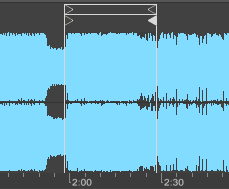
You will notice the sound waves from the sample in the Detail View.


To zoom and navigate through the waves, drag the top bar (when you see this icon) up, down, right and left.


Make sure the "Warp" option is on and double-click on the 4th bar to create markers. To delete a marker, simply double-click it. 


After creating your markers, right click the sound wave and select "Slice to new MIDI track".


Select the "Warp Marker" option and hit "OK".


Ableton will now generate a new MIDI track with a drum rack. In this drum rack you will find your sample divided by the markers you created earlier.


You can now connect your launchpad and use user 1 mode to control the drum rack!

Slicing a sample to session mode

In this tutorial you will learn to slice a sample and use it in session mode.

First backup your sample. This can be done by holding (Ctrl) or (Cmd) and draging the sample to any other spot in an audio track.


Now double click the copy of your sample  drag the 4 arrows to the part of the wave that you want to split.


Right click the sound wave and select "Crop Sample".


Now you've got two samples: a backup and the cut sample


Done! After cutting the song to as many parts as you want, you can delete the backup and play!

Ps: You don't need to crop the sample. You can simply drag the 4 arrows and you're done, but for stetic purposes it's nice to crop it!

Ps 2: You can drag audio samples into a drum rack.